App Store Screenshots: What to Show, From 6 Redesigns
Open the App Store and search for something your app does. You get a row of results, and under each one, three small pictures. That is the whole audition. Three thumbnails, at about the size of a postage stamp, next to five competitors doing the same thing.
Most of us caption those frames with what the app has. Personalized Plans. Progress Tracking. Guided Workouts. I have written exactly those words, on a real set, for a real client.
It is the wrong instinct, and it is easy to see why we have it: a feature list is what we have been staring at for six months. The person scrolling has not. They are not deciding between your features and somebody else’s. They are deciding whether anything here is for them.
So here are six sets I rebuilt, five of them side by side with what they replaced. What changed in the captions, what changed in the first frame, what changed in the device mockups, and the one set that breaks the rule everybody repeats about caption length.
In short
- Three screenshots are visible in a search result without scrolling. Everything below that is for somebody who already decided to look.
- In five of six redesigns the first frame went from a collage or a framed phone to one full-bleed image, and in four of those the app’s own UI left the first frame entirely.
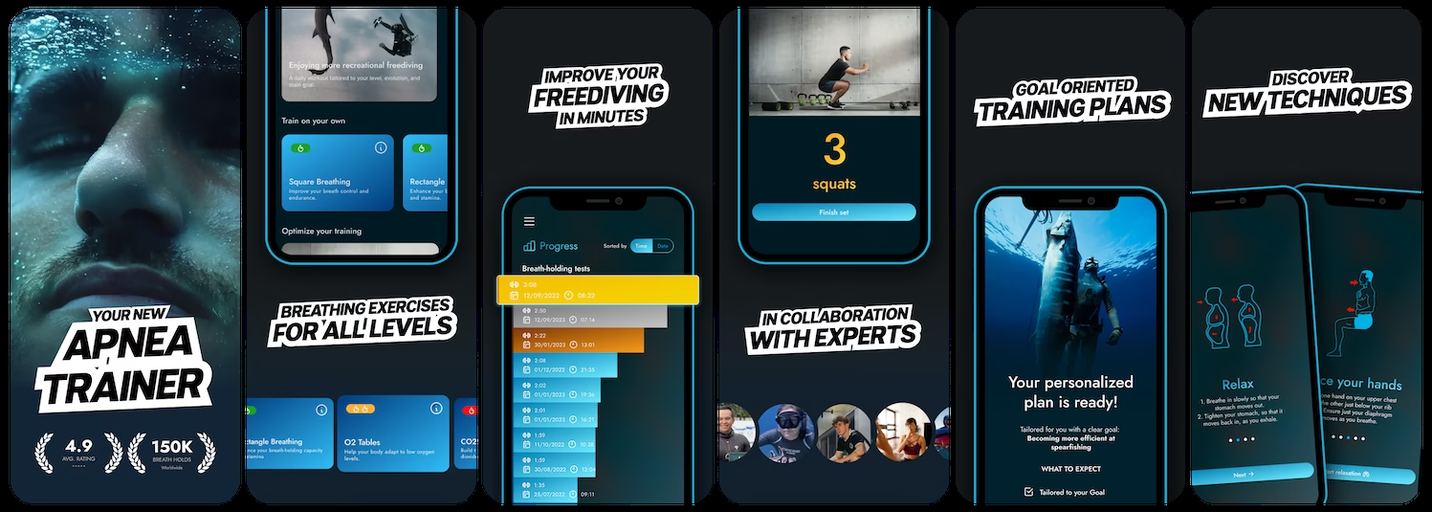
- Noun-phrase captions were replaced with outcome sentences in all five. “Progress Tracking” became “Improve your freediving in minutes”.
- The exception is AI Decorator, which uses a two-word feature name over a one-line outcome, and launched at 32% trial-to-paid. The “three to five words, never a sentence” rule is not what the best-performing set here does.
- Apple’s guideline 2.3.3 requires screenshots to show the app in use, not title art, a login page or a splash screen. That is a rule, not advice.
Three frames, at thumbnail size
A search result shows three screenshots side by side. Not five, not eight. Three, at a width of roughly one third of a phone screen.
That is the constraint everything else follows from. It is also the hardest one to hold in your head. You are designing on a monitor, where the frame is twenty times bigger than the place anybody will see it.
So do this before anything else. Export your current set, put it on your phone, and hold the phone at arm’s length. Whatever you cannot read at that distance is not on your listing, whatever your Figma file says.
Captions: what it has, or what you get
Every set I have been handed captioned features. It is the default, and it survives because it feels like information.
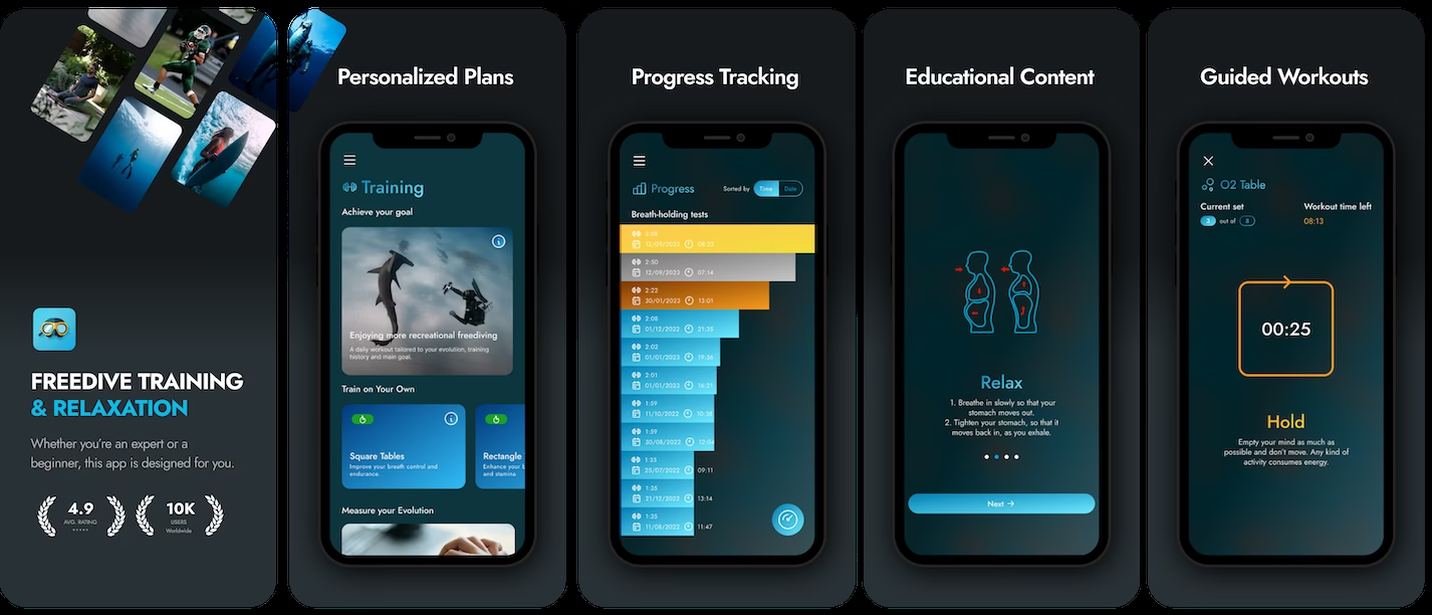
Now the same app, rebuilt.
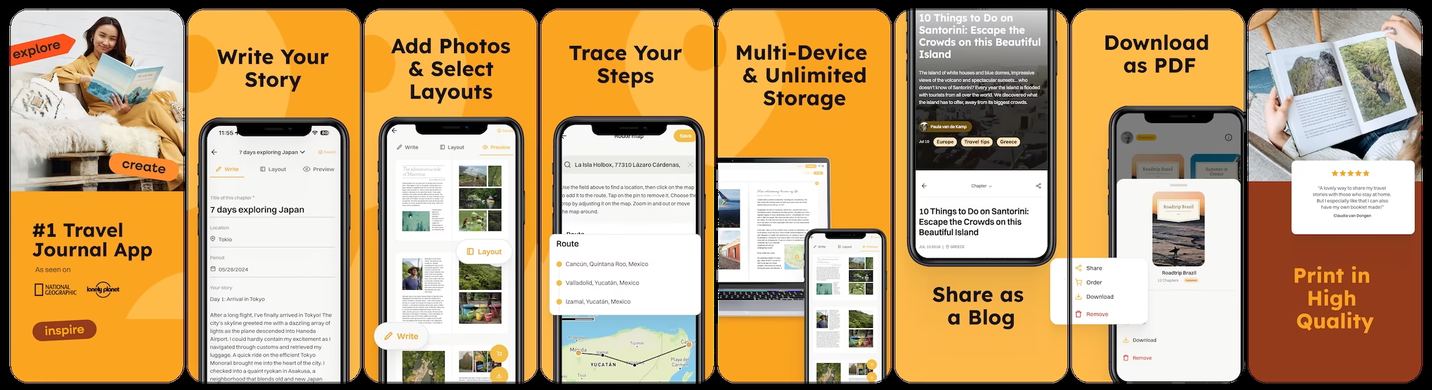
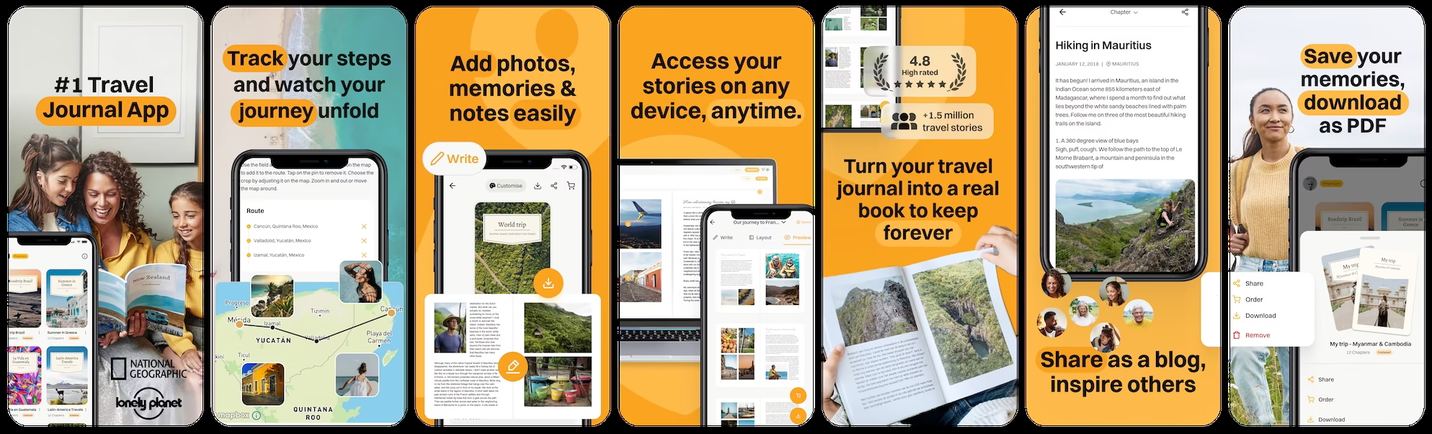
The same move, on a travel app
Travel Diaries had the same problem in a different colour.
The first frame stops being a phone
This is the change I did not expect to be so consistent. In five of the six sets here, the first frame ended up as one image filling the whole thing. In four of them the app’s own interface left that frame completely.
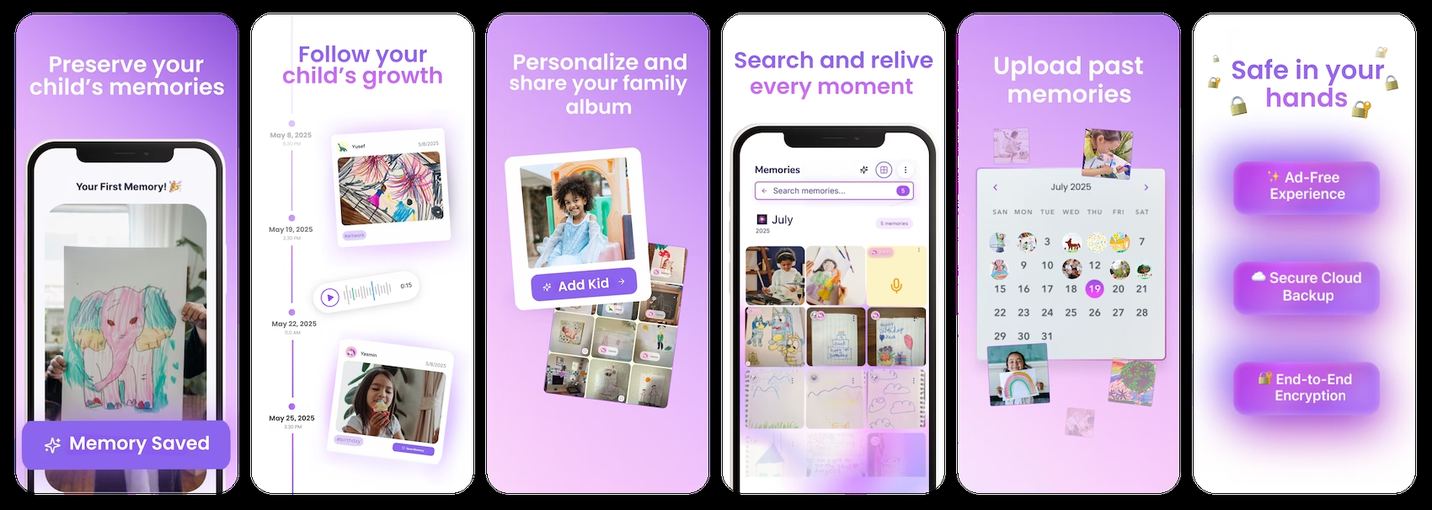
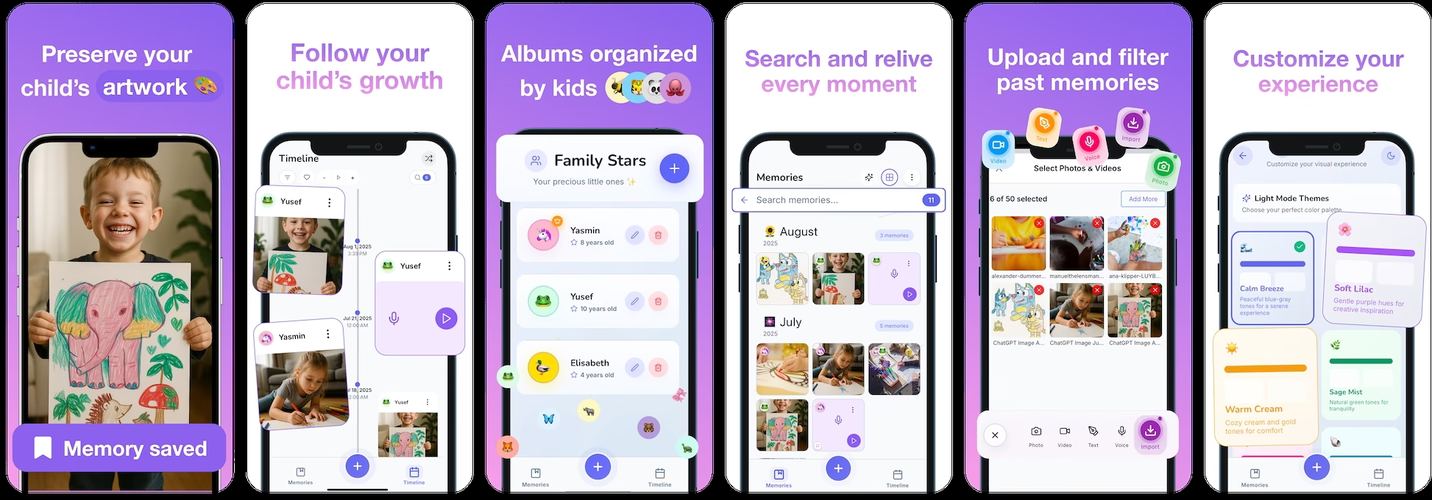
Apnea went from a collage of six tilted photos to one face underwater. Travel Diaries went from a phone held inside a photograph to a family looking at a printed book. VaultIt went from a cropped phone to a child holding up his drawing.
Show the app in use. That one is a rule
Most of what you read about screenshots is opinion. This part is not.
“Screenshots should show the app in use, and not merely the title art, login page, or splash screen.”
That is Apple’s App Review Guideline 2.3.3, and it is a rejection reason rather than a suggestion. Which means an empty state is a risk twice over: it is the weakest thing you could show, and it is the thing the reviewer is told to look for.
Populate the screens. Real names, real amounts, real photographs. VaultIt’s after set is the clearest version of it on this page.
The set that breaks the caption rule
Everybody repeats the same advice about caption length: three to five words, never a sentence. I have repeated it myself.
Then I looked at the best-performing set I have shipped.
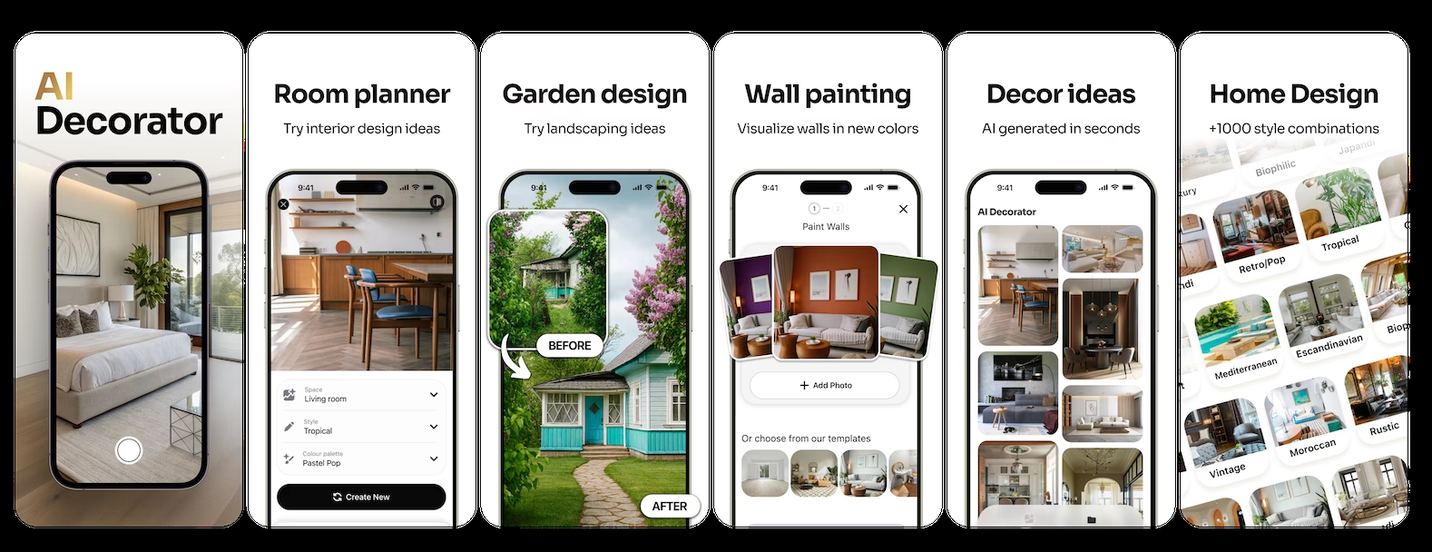
So the rule is not really about word count. It is about whether the frame answers “what do I get” somewhere. AI Decorator answers it on the second line. Apnea answers it in one sentence. Both work. A single noun phrase answers it nowhere, which is why that is the one shape every redesign here removed.
How many frames, and in what order
You can upload ten to the App Store and eight per device type to Google Play. Every finished set here landed between five and eight.
What each part of the set is doing
The split that came out of six redesigns. The first group is the only one most people see.
The only ones in the search result
What it is, what you get, and the proof that it works. These three have to make sense alone, because for most people they are the whole listing.
One capability each
For the person who tapped through and is now deciding. One idea per frame, populated UI, no two frames making the same point.
Proof, or stop
Ratings, press, a number about usage. If you have nothing specific to put here, finish at six. An eighth weak frame is worse than no eighth frame.
Travel Diaries went from eight frames to seven in the redesign. Nothing was lost, because two of the eight had been saying the same thing.
The sizes, and what they actually require
This part changes, so check it against Apple and Google rather than against any blog, this one included. As of October 2026:
- iPhone. 1290 × 2796 px is the 6.9-inch size, and Apple scales it down for smaller devices. One set covers every iPhone.
- iPad. 2064 × 2752 px, and it is a separate upload. There is no scaling across from iPhone.
- App Store limit. Ten screenshots.
- Google Play. 1080 × 1920 px recommended for phones, up to eight per device type, each file under 8 MB. Tablets need their own.
- Format. PNG for anything carrying text, which is all of them.
One set, then test it
The usual question at this point is whether iOS and Android need different sets from the start. My answer is no, and it is a budget answer rather than a design one.
Ship one set to both. Get a baseline. Then test, because you now have the thing that makes testing worth doing, which is traffic arriving at a known listing. Running the test properly is its own job, and the sample size question is the one that catches people.
If the budget is there for two sets on day one, take it. If it is not, one considered set beats two rushed ones, and you will learn more from the first round of data than from the second set.
Screenshot checklist
- Exported the set, put it on a phone, held it at arm’s length, and read every caption
- First three frames make sense on their own, with no fourth frame to explain them
- No caption is a bare noun phrase. Every frame answers “what do I get” somewhere on it
- First frame is one image, not a collage, and not a login or splash screen
- Every screen shown is populated with real-looking data, per Apple guideline 2.3.3
- Any rating, press logo or usage number is large enough to read at thumbnail size
- Five to eight frames, none kept only to reach eight, at 1290 × 2796 for iPhone, a separate 2064 × 2752 for iPad and 1080 × 1920 for Play
- One set shipped to both stores, with the test planned rather than assumed
Got questions? I’ve got answers
How many App Store screenshots should I have?
Five to eight. You can upload ten, and the three visible without scrolling are the ones that decide it. Across six sets I have redesigned the finished count was five to eight every time, because past eight the last frames are seen by almost nobody.
What should the first App Store screenshot show?
The thing the app does, photographed or rendered large enough to read at thumbnail size. In five of the six redesigns here the first frame changed from a collage or a framed phone to one full-bleed image. Apple's guideline 2.3.3 also rules out a splash screen or a login page as the opener.
Should screenshot captions be features or outcomes?
Outcomes, with one exception worth knowing. Noun-phrase feature captions like “Progress Tracking” say what the screen is, not what the user gets. Every redesign here replaced them. The exception is AI Decorator, which pairs a two-word feature name with a one-line outcome underneath, and launched at 32% trial-to-paid.
What size should App Store screenshots be?
1290 × 2796 px covers iPhone, and Apple scales it down to smaller devices, so one set is enough. iPad needs its own at 2064 × 2752 px. Google Play recommends 1080 × 1920 px for phones, up to eight per device type, each file under 8 MB.